WPS PDF
WPS PDF editor and PDF to Word converter
This is the feature that beats many free office suites. Edit PDF in the same window as Word and Excel. Convert locally when you can.
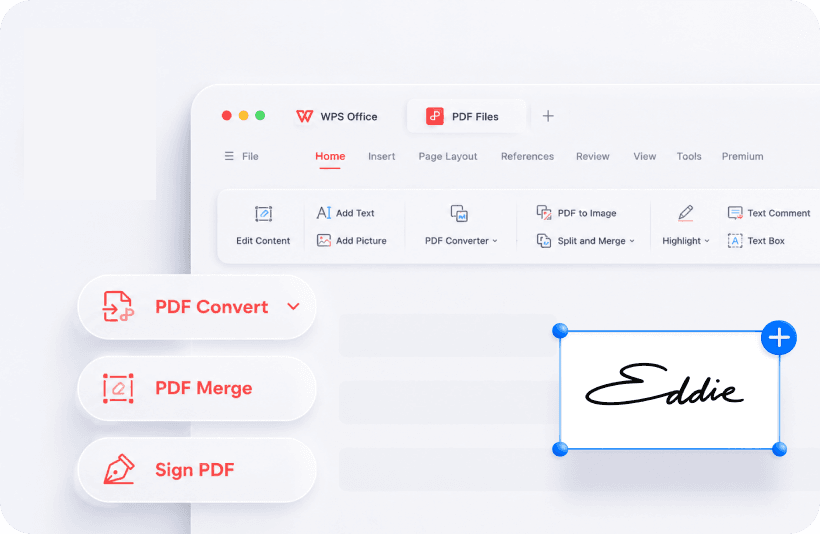
What the PDF toolkit does
Read, highlight, comment, add text, insert images, merge, split, watermark, and e-sign. OCR helps scanned pages. Chat with PDF (WPS AI) can pull key points. Verify citations on the original page. Prefer the desktop converter over uploading a thesis to a stranger’s site.
How to convert PDF to Word without surprises
Step 1
Open the PDF in WPS
If it fails, check file size. A 2 KB file is usually a failed download. See the PDF not opening guide.
Step 2
Tools, then PDF to Word
Set language for better OCR. Choose a save folder you can find.
Step 3
Preview the first pages
Free conversion is a short page range. Long contracts usually need Premium. Scanned magazines rarely convert cleanly.
Limits
Annotating and reading PDFs is free. Long PDF to Word is the usual paywall. OCR quality depends on scan resolution. Password-protected PDFs need the password. WPS cannot invent a key.
Related: PDF to Word guide, PDF troubleshooting, free vs Premium.
Get the official WPS Office free download
Install from wps.com, then open a copy of a real file.
Download on wps.com